BohemkaBOT is desktop app that watches your stream's health and reacts instantly, so your viewers see a clean "low signal" scene instead of a frozen mess.
It's included with every Relay and CloudOBS plan, connects to your OBS, and is controlled from chat or from BohemkaBOT Remote.
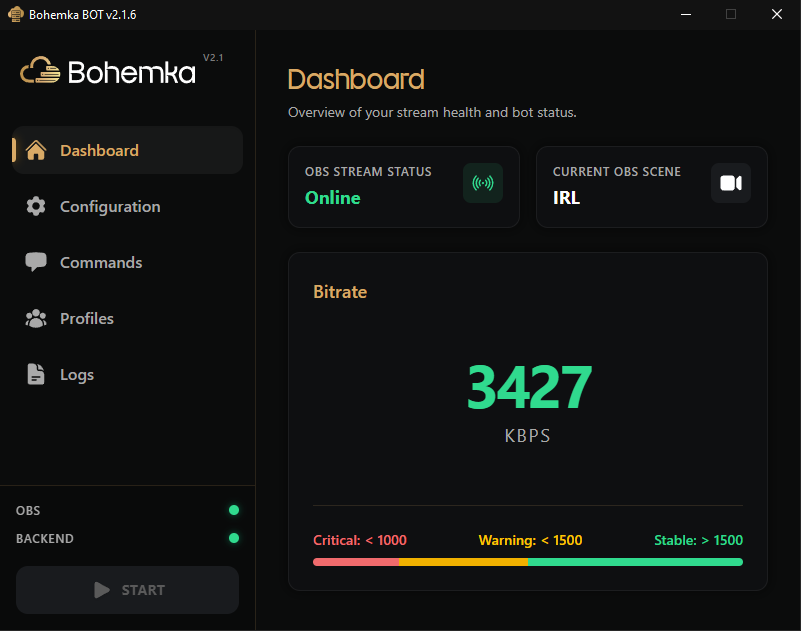
Automatic scene switching
This is the heart of BohemkaBOT.
Bitrate-aware — it continuously monitors your stream's bitrate.
Three states — define a Normal, Warning, and Critical scene. When your bitrate crosses your thresholds, BohemkaBOT switches OBS to the matching scene automatically — and switches back the moment your connection recovers.
No more frozen streams — instead of a stalled camera, viewers get a tidy "connection unstable" screen until you're back.
You set the thresholds and the scenes once; the bot does the rest.
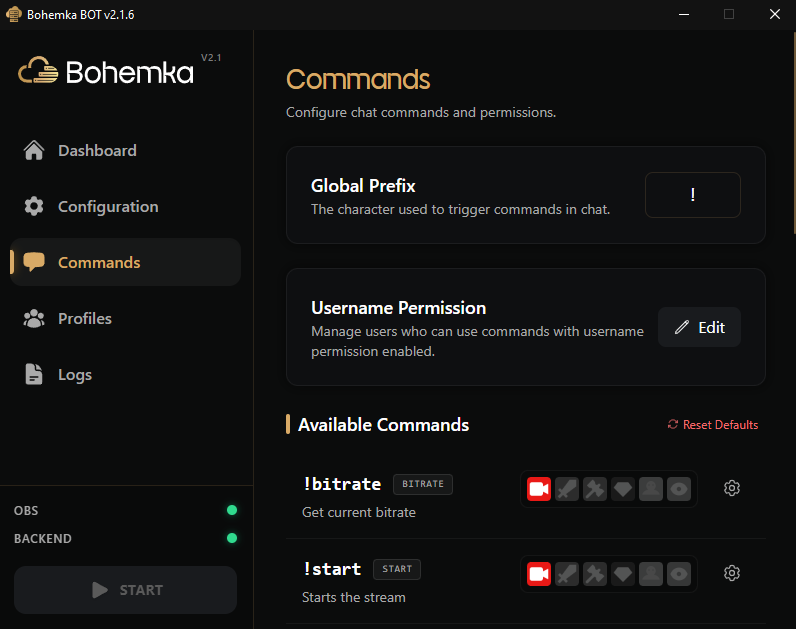
Control your stream from chat
Run OBS straight from your Twitch or Kick chat:
!start/!stop— start or stop the stream.!privacy— instantly switch to your privacy scene (and back) when you need a moment off-camera.!fix— fix frozen media sources in OBS.!switch/!change— switch scenes, or reconfigure which scene maps to each state.!threshold— adjust your warning/critical bitrate thresholds on the fly.!bitrate— report the current bitrate.Plus
!record,!source,!mute,!retry, and!profile.
Profiles for every setup
Stream from different places or with different gear? Profiles let you save complete configurations — scenes and bitrate thresholds — and switch between them in one step (!profile, or a tap in the app). One profile for your home setup, another for mobile, another for a car. Whatever you need!
Works hand-in-hand with BohemkaBOT Remote
BohemkaBOT runs the automation; BohemkaBOT Remote puts it in your pocket. From your phone you can run every command, change settings, watch your bitrate, see your chat and alerts, and switch scenes, all without touching your PC. (See our BohemkaBOT Remote post.)
How to get started
Open BohemkaBOT and log in with your bot token from the billing dashboard (Manage on your service).
Connect it to OBS (via OBS WebSocket) and authorize your platform (Twitch and/or Kick).
Set your Normal / Warning / Critical scenes and your bitrate thresholds.
Go live. BohemkaBOT keeps watch and reacts automatically.
That's it — set it up once and let BohemkaBOT keep your IRL stream smooth.